Home     Windows Phone     Nokia Belle     Nokia N8     Asha Series     Phones     Apps     Unboxings

Sunday, December 9, 2012

Nokia Asha 308 review - Touch duality

The Nokia 308 does not pretend to be a smartphone, but it does claim to be a smart feature phone. The device looks attractive and will certainly appeal to the youth crowd. The build quality is good even though not extraordinary, but considering the price tag you get more than enough for your dollar. The 308 is made of good quality plastic material and offers a squeak free experience.


The dual SIM capabilities are another plus for the budget phone buyer, but the lack of Wi-Fi is a show stopper for those who want internet on the cheap. No Wi-Fi means you gotta have a decent data plan in order to use intensity on this phone. The bright side is that the 308 is very network friendly and consumes immensely less data then your average smartphone. A couple if days of usage only ate 4MB of my data plan in which time I've download a game and used Facebook And Twitter more than a couple of times.


The hardware of the phone is not stellar, but nor should we expect such hardware at this price point. The multi touch capacitive display is I believe a first in this price bracket and a welcome addition. The 308 sports a 3 inch screen with a resolution of 240 by 400 pixels. The resolution is pretty decent for that display size keeping in mind that some Android phones have lower resolution on bigger displays. The Asha 308 is equipped with an accelerometer which comes in handy for text input in landscape mode and when playing games.

On the right side of the phone we can find the volume rockers and the lock/unlock key. On top we have the 3.5mm jack port, the micro-USB port and the 2mm charging port, while on the back we have the 2MP fixed focus camera with no flash light. On the right side of the phone we have the second SIM card and the micro-SD card slots. The primary SIM card slot is located under the battery so it's not hot swappable. However the phone can switch from SIM1 to SIM2 in a heartbeat without needing to reboot.


The box contains the phone itself, the battery, a 1GB memory card, a Nokia headset and a Nokia 2mm charger. The phone can also charger tough the USB port. Unfortunately there is no USB data cable included, but at this price point it wouldn't be a first. The usual leaflets can also be found in the box, along with the warranty card.

The camera takes not very good pictures, and it seems that the camera sensor is not the same as on the Nokia 5230 add I was expected, but a cheaper unit. Video recording is disappointing with a resolution of 176x144 pixels at 10 frames per second. I was expecting at least QVGA at 15 frames per second.

The photo gallery had punch to zoom, a feature you don't see too much in feature phones. Zoning in and out is decent even though it takes a while until you see the full quality zoomed in picture.

The Asha 308 comes with Facebook and Twitter apps preinstalled, a great email client and 40 free EA games. Yes the games are java games but just the ability to download them from Nokia Store is something not many phones can brag about.


The homescreen had been completely redesigned compared with the non touch S40 devices. The new homescreen looks more like MeeGo than an S40 homescreen. There are three panels. The middle panel is a the columns grid of applications. On the right side panel you have the phone dialer, and on the left side you have your favorite panel. Here you can add it pin shortcuts to the installed apps and also add your favorite contacts.

What amazed me about this phone was that it has badge notifications for some apps like the phone app or the messaging app, which it's a first for S40.


Bringing S40 into the touch era meant Nokia had to create an on screen input method and it looks life they've learned from the mistakes they did with Symbian touch. The full qwerty keyboard is excellent in both landscape and portrait, supporting split screen too. Another welcomed addition is the pull down notifications and switches area. Just like on Nokia Belle, you can pull down from the top of the display and you can change your connectivity settings and see your incoming notifications.

The web browser is Nokia's new Xpress browser. A cloud based browser that keeps data consumption down, compressing web pages up to 90 percent.

The Nokia 308 and the Asha touch series in general meant bringing a smartphone like experience to the low end budget phones. Nokia tried to create an ecosystem for the Java based S40 devices, with an app store, games and social apps. That is what smartphones are really about, keeping you connected and making your life easier. The Asha 308 manages to do just that, and even though it's not a real smartphone, it brings you a lot of features and apps that you won't find on any other smartphone. That being said, the entire Asha series has one great advantage over other feature phones, and that's Nokia Store. I don't mean the free app catalogue, I mean the paid ones. With Nokia Store you can pay via SMS which is a golden egg in developing countries, Asha's main targets.

Comments

Tuesday, July 17, 2012

Help needed. Support me to become the Nokia Lumia Amazing Ambassador

Hey friends and readers. Today I need your help. Nokia Romania is holding a contest where I could win a Nokia Lumia 800. If I would win this phone, I will also be able to cover Windows Phone on this blog.

In this final phase of the competition, there are only 4 contestants left. The voting closes on August 5th, so please vote me until then and if you can encourage your friends to do so too, I would be deeply grateful.

Follow this link and hit like in order to support me.

Thank you.

Comments

Monday, June 25, 2012

Six months with the Nokia N8


Six months have passed since the Nokia N8 has been my main phone and now it's time to take a look back and see how it has serverd me these past months. This post is not only about the N8, it's also about the evolution of Nokia Store during that period and about what will be coming to the N8 in the near future.

The beginnings

When I got the N8 back in December 2011 it was equiped with Symbian Anna. The phone was fast and reliable with Anna, but I was eagerly waiting for the announced Belle update that eventually came in February. The Nokia Store app repository was growing at the time and more and more Qt apps, some of great quality and others of questionable one were emerging in the Store. Some apps were just released and later evolved into mature apps, reliable apps.


Back in December there were only a few social apps that one could use on Symbian. The already famous Gravity took care of my Twitter needs, the well known fMobi was my de facto Facebook client with Facial acting as a sidekick. Tweeties was just released as an alternate Twitter client, but was not even close to Gravity as far as resources and usability is concerned.

The battery life was decent, the phone survived more than a full day of heavy usage and photo taking. I took well over 5000 photos with it and more than 20 hours of video footage.


When the Belle update arrived the battery life increased and now the phone lasts around two full days with the same heavy usage as before. The tweaks under Belle's hood worked very well for me. The speed of the user interface however slightly decreased since the Belle update, but nothing I that a non-obsessed user, such as myself, might notice.

Battle scars

My N8 survived a few drops with no visible signs left on the device. I keep my phone mostly in my pocket or on my desk so I did not use any covers to protect it from damage. Still, the phone looks as well as it did when I first took it out of the box.
Here are two photos of the phone that clearly show how well it still looks after the six months battle with my pocket ahd heavy usage.

Before


After


The present

Now, I take even more photos than I did when I got the phone, somehow the enthusiasm factor never wore down during this six months. I even started the N8PictureADay series because I felt like I should share some of the amazing photos I took with this phone. That is also because since the Belle update the camera software seems to be improved, with the phone now taking better quality pictures than it did when Symbian Anna was calling the shots.

The app repository has exploded with lots and lots of quality Qt apps coming to Belle. To name only a few we now have Facinate, Tweetian, Blob, Notekeeper and many many more that we did not dream to have six months ago.

What is about to come

It's been more than two years since the phone was announced and I have to say that Nokia did a stellar job with the software updates, which only goes to show how much they care about their existing customers. The phone got two major operating system updates going from Symbian^3 to Symbian Anna and now on to Nokia Belle. And that's not all. Recently Nokia announced that a lighter version of the Fearture Pack updates will be coming to the Nokia N8 in the form of the Nokia Belle Refresh update. The N8 cannot take on the full featured Feature Pack because of the lower hardware specs compared to it's youngest brothers, the 701 or the 808 PureView, but still a third major update of the OS is way better than any other phone I heard about, being surpassed only by Apple's updates for the iPhone 3GS. The new update is said to bring some minimal overclocking with little to no impact on battery life that will breathe new life again into the now aging N8.

Conclusion

I am very happy to own this phone that has one of the best cameras in business being surpassed only by it's younger 808 PureView sibling. The N8's camera can take on any other cameraphone still winning every battle. Not too bad for a 2 year old design.

Comments

Saturday, June 23, 2012

Blob for Nokia Belle - Blogger client at last

Any Symbian user knows that Nokia Store has a lot of holes in it when it comes to apps. Android, iOS and even Windows Marketplace, they all have more apps than Nokia store. However, lately there's been an infusion of good quality apps for the platform and one of them I'm gonna review today.

Wordpress had an app available for Symbian for quite a while now, but the Blogger crowd was left in the dust. Until Blob happened.

Blob is an almost full featured Blogger(Blogspot) client. It supports rich HTML5 editing and viewing.

It only lacks one feature, but I miss exactly that one a lot, uploading pictures.

Blob has the ability to work both online and offline providing offline drafts(only pro version), and then synchronizing them whenever an internet connection is made available. You can also choose to completely disconnect and work only offline. You can always set the work mode to online later and all post will sync with the Blogger server.

The paid pro version offers a great clipboard for advanced users along with a rich text editor suitable for your blogging needs. You can add labels and even schedule an article publication, just like you do on the Blogger website.

At price of under 1 Euro this is a MUST buy for all Blogspot bloggers.


The main view is the first view you're gonna see after you login and it shows you a list with your blogs.


Tapping one of your blogs will take you to a list of your latest posts from that blog. Each post is marked with a colored bullet, dark orange for published post and blue for unpublished posts.


Tapping a post will take you to the post viewer panel where you can see the post exactly as it is, in a HTML5 enabled browser. From here you can choose to edit that post by pressing the edit button located in left-middle. Pressing the comments button in(right middle) will take you to the comments list of that particular post. There you can also choose to add a comment to that post.

Besides the photo upload feature missing, this client is a full featured Blogger client. Even the photo issue can be worked around by enabling the Mail to Blogger feature on you blog.

The user interface is fast and I was convinced and bought the app in 10 minutes.

There is also a free version of the app but it does not offer offline drafts nor the exquisite clipboard.

You can download Blob from here:

Blob Pro Version - paid (Nokia Store)

Blob Free Version (Nokia Store)

Comments

Wednesday, June 20, 2012

Windows Phone 8 and what it means for Nokia - Rant


This is an article I hoped I would never have to write. I do, however, have to.

Nokia has had a special place in my heart for a long time. Some may have called me a fanboy, may have said I lost my objectivity, well, I don't think so. I love the brand, but I don't like what's happening with it.

On February 11th 2011 Nokia and Microsoft decided to team up and boost Windows Phone 7 to new heights. That involved Nokia services being integrated in the Windows Phone ecosystem, special support(both money and resources) from Microsoft to help Nokia build WP devices faster, and lowers specs for upcoming phones so that Nokia can tackle it's traditional market, the low-to-mid range. The financial aspect of the deal involved Microsoft paying Nokia a decent amount of money upfront with Nokia paying it back later for each phone.

Nokia's newly appointed CEO at the time Stephen Elop set Symbian on fire and MeeGo down the drain on the same day when the shift to WP was announced so Nokia had only one alternative left, Windows Phone.

Nokia has had a really bad history with software updates. None of the S^1 devices ever saw Symbian^3, but Nokia realized that and changed the way it was thinking about updates. The result was that even the first Symbian^3 device(the N8) got the Nokia Belle OS running, two years after it was launched. That means 2 major OS updates in two years. In my eyes that meant that the Nokia SW division was healing, that they finally got the point, and everything would be OK.

But then Windows Phone 8 happened. Microsoft practically told everyone, every single adopter of Windows Phone 7 that they're screwed. It's bad enough that the current Windows Phone 7 devices won't get the Windows Phone 8 update, but the worst thing is the applications backward compatibility. In order to reach more developers Microsoft switched to C/C++ apps, screwing it's customers, it's believers in the process. In plain talk this means that any app developed by a new developer that just adopted Windows Phone 8, won't be available for Windows Phone 7 devices.

To boil it down to a couple of words you won't get any more major updates, you won't be able to run the newest apps, you'll only be able to run legacy apps.

Bottom line, Microsoft screwed Nokia. If Samsung doesn't sell one Windows Phone they won't care, they have an army of droids behind that can take the hit. Same goes for HTC. But if Nokia doesn't sell Windows Phones they're dead in the water. And with an announcement like the WP8's, who's gonna buy the beautiful Lumia 900 knowing that in a couple of months it's gonna become a legacy device? Who Mr. Elop? Who Mr. Balmer?

So Symbian devices will be getting a new update, and even the first generation launched 2 years ago, but the Lumias launched THIS year won't get an update that will be released the very same year of their launch. What a bitter irony...

Comments

Tuesday, June 19, 2012

Microsoft Office apps hit the Nokia Belle enabled Nokia N8

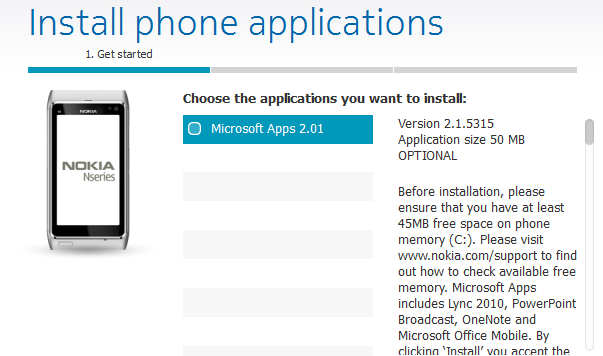
Good news N8 owners! Today Nokia has released a much awaited update for our beloved phones. The Microsoft Office apps suite is finally available as an update trough the Nokia Suite desktop software. Plug in your N8's and the update should be there.


Please read carefully before trying to install as this update requires a temporary 45MB of internal phone memory. Probably after the installation you'll still lose 20MB of internal memory, but that's not too much considering what you're getting. A full editing office suite that includes OneNote, Word, Excel, PowerPoint, Lync and PowerPoint Broadcast. I have one tip for you guys that you can follow prior to installing the MS Office suite on your N8's: uninstall QuickOffice, it will give you 10MB more internal memory space which can prove handy while installing the new update, plus there is no point in having two office suites installed on your phone.

Another plus you get with this update is the Mail, Arrivals widget as part of the updated email client. The email client has now improved Exchange support and a quicker HTML rendered for complex emails. You will also find a new plus button on the email client toolbar allowing you to quickly compose a new email.

Image courtesy of All About Symbian.

Comments

Tuesday, June 5, 2012

Nokia Asha 311, 305 and 306 launched

Today Nokia has announced three more Asha devices to further expand the affordable Asha series. This time we are talking about three brand new full touch phones. Yes, that's right full touch S40 phones.

Nokia Asha 311


The most powerful of the bunch is the Asha 311 pictured above which sports a 3 inch LCD QVGA(320x240px) capacitive display powered by a 1GHz CPU. The connectivity features include Bluetooth, 3.5G and WiFi b/g. It also supports AV output trough the 3.5mm jack port. The Asha 311 has a 256MB internal user memory and supports micro-SD cards up to 32GB. Photography is handled by a 3.2MP fixed focus snapper.

Check out the video below for a preview of the Asha 311.


Nokia Asha 306


The Asha 306 pictured above sports a 3 inch LCD QVGA(320x240px) capacitive display but the CPU specs are still unknown. The connectivity features include Bluetooth, 2G(no 3G unfortunately) but now WiFi. It also supports AV output trough the 3.5mm jack port. The Asha 306 has a 64MB internal user memory and supports micro-SD cards up to 32GB. Photography is handled by a 2MP fixed focus snapper.

Check out the video below for a preview of the Asha 306.


Nokia Asha 305


The Asha 305 is the dual SIM version of the 306 so the specs are the same. The Asha 305 uses the easy swap SIM capability.

Check out the video below for a preview of the Asha 306


All three phones come with Nokia Maps and Nokia Life preinstalled and will benefit from a launch offer of 40 Electronic Arts games for free.

The new touch based Asha OS features a pull-down notification area just like Belle and the input is handled by a QWERTY on-screen keyboard available in both portrait and landscape orientations.

Comments

Friday, May 25, 2012

Nokia Belle Refresh replaces FP1 for the Nokia N8 and it's siblings

So the Nokia N8 is going to get some FP1 love after all under a new set of clothes, Nokia Belle Refresh.

The guys over at Unleashthephones.com got their hands on some screenshots from the upcoming update and it's all good news.


There is a new browser version, 8.3 which should improve the usability of the Nokia Browser and the new version will be dubbed 111.040.


The N8 will also get the new widgets that we've already seen in the FP1 update, including Mail, new arrivals, Gallery, Mobile Data counter, various toggles and a greater variety of clock widgets. Another useful widget that I was desperately waiting for is the notes widget which gives you quicker access to creating and reading your notes.


There is also an update for the Music player and it looks like we're going to finally get Microsoft Office probably as a download from the Nokia Store.

Rumor has it that the N8 will also get a boost in CPU speed, "a minimal overclock" to quote the Nokia spokesman that provided the news, Mathias Fiorin. That means the N8 will probably be bumped to 800 MHz even though the SoC inside can do 1 GHz by design.

Comments

Monday, April 9, 2012

How to extend your battery life on your Nokia N8


Nowadays smartphones have a really big issue. In the 90's and early 2000's manufacturers tried their best to squeeze as much battery life as possible from phones. Back then if your phone got through a week of usage it wasn't a big deal. Today, we're lucky in our smartphones get us through the day. The Nokia N8 fortunately is a champion at battery life, being able to carry on for two full days, if used properly. So here is what you need to do to get longer battery life out of your Nokia N8.

Disable the connectivity features you don't need


People need different connectivity features in different circumstances. For example, I rarely use Bluetooth, so I keep it turned off all the time. Bluetooth is a big battery hog because the phone scans for other close by Bluetooth devices periodically and that drains your battery faster. Turn Bluetooth off until you need it.

If you're an active person that drives around a lot and is rarely within WiFi range, turn off your WiFi until you get home. If your WiFi is turned on the phone will scan for WiFi networks all the time and drain your battery.

If you're in the opposite situation, sitting at your desk most of the day then you do need WiFi. But if you have WiFi you won't need 3G anymore right? Switch to 2G whenever you are in WiFi range for a few hours. You can also completely disable your mobile data connection which would be even more helpful in the situation.

You can access all you connectivity options from Menu->Settings->Connectivity.

Lower brightness


The AMOLED display of the Nokia N8 is very bright and legible in sunlight and the maximum brightness is set to half the possible brightness. What that means is that when the light sensor of the N8 detects bright light hitting the screen it turns the brightness up to the selected maximum. So the phone itself protects the battery by turning down the brightness when not needed, but still even two steps down from the middle brightness setting is pretty bright for indoors and decent for the outdoors. Take you maximum brightness even one step down and you'll notice a considerable longer battery life.

You can change the display brightness from Menu->Settings->Phone->Display.

Use dark themes

The display on the Nokia N8 is an AMOLED display. The good thing about AMOLED displays is deep blacks and the fact that these deep blacks consume less power than any other color. A white pixel consumes way more power than a black pixel on AMOLED screens. That makes using dark themes friendly to the AMOLED display and it's power consumption. Also, if you are using applications that have custom user intefaces, try to use darker themes on those too. I'm talking Gravity, fMobi, Facinate. They all have dark themes as well as white themes.

You can change the theme from Menu->Settings->Themes->General.

Use battery saving mode at night


Battery saving more is a very useful feature when you're running low on battery. But why not use it as a battery save during the night? You don't need 3G or short WiFi scanning interval during the night do you?

You can turn on and off Battery saving mode by pressing the Power button with the phone unlocked.

If you're wondering "how can I remember all theses tips and use them?" worry no more. You can have Nokia Situations take care of these settings for you. A while back I wrote a post about Nokia Situations and how it can help you automate your life.

Increase automatic retrieval intervals


Applications such as Mail, Gravity, fMobi, Facial and many others, use automatic retrieval at programmable time intervals to retrieve emails, feeds or tweets. This interval is usually 15 minutes, or even instant in the case of a GMail account. Increasing that interval will instruct the apps to make lesser internet requests in the same time interval. For example, the Mail app has the default interval set to "Soonest" on email retrieval for a GMail account. What that means is the app stays connected to the mail server at all times, waiting for a push notification from the server. If you set it to 15 minutes, it will check if there is any new mail every 15 minutes and notify you if it does find something, but it won't stay connected to the mail server at all times. That will save you battery life. I've set my interval to 1 hour because I don't get hundreds of emails per hour, so in my case this works. I've also set the interval to 1 hour to both Gravity and fMobil, my social clients. Less internet requests, less power consumption.

Disable or lower haptic vibration


Haptic feedback on Nokia phones is great and it does help you a lot while typing or browsing. But in case you can live without it, you should consider that with each vibration your battery takes a hit. If you must have haptic feedback, set it to Level 1. At Level 1, you have a good balance between battery life and haptic response.

You can change your haptic settings from Menu->Settings->Profiles->[Profile]->Personalise->Touch screen vibration.

Disable the screensaver


The screensaver is another thingie that comes pre-enabled on the Nokia N8 and eats up some battery life. The screensaver practically keeps the display turned on at all times, even though it doesn't look like it at a first glance. If you try to look at your screen in the dark, at night you'll notice the display being lit up a little. The idea behind the screensaver was to to show you some info so that you won't have to power up your display to see it. It eats less power than a full-on display, but more than a turned off one. If you are a busy person and check your clock or missed alerts often it may be better to keep your screensaver on.

You can disable or enable the screensaver from Menu->Settings->Themes->Screen saver.

You won't be able to use all these tips at one, that I know. But even if you use a few of them you'll soon realize that your phone's battery will last longer while doing the same volume of work.

If you have any other tips that can improve battery life, let us know in the comments.

Comments

Sunday, April 1, 2012

How to take the best photos with your Nokia N8


Taking photos is not always a matter a point and snap, on cameras such as the 12MP snapper on the Nokia N8, it's about a lot more. So, here are my findings after using a Nokia N8 for 4 months. I have to say that I snapped a pretty considerable amount of pictures because I have a 2 year old kid at home that gives me lots of reasons to snap photos every day. Plus, I'm a huge fan of landscapes and I try to snap them whenever I can.

Steady hands

First thing you absolutely have to do when you snap a photo is to hold you phone as steady as you can. A moving camera cannot take a crisp clear shot. In good light conditions, more light hits the camera sensor and you have a better chance to take a clear picture. But still, I recommend you find yourself a nice steady position if you want to shoot a landscape or a static object. One thing I noticed a lot of people do is press the snapper button and immediately move the phone or camera. DON'T DO THAT! More often than not, the phone or camera you shoot pictures with is not done taking the photo, because not all cameras of phones have an accurate synchronization between the snapper sound and the actual time shutter opens. That causes a lot a motion blur in images, especially in low light. You have to take extra care in the case of the Nokia N8 because, whenever you press the snapper button the camera first finds focus and then takes the picture. Once you see the "Processing" message on the display you're safe to move your camera. Here's a comparison between two consecutive shots, one steady and one moving.


Focusing

With fixed focus or full focus cameras like the EDoF one on the Nokia C7, focus is not an issue. A steady hand and a press on the snapper takes an instant photo. Because of the auto-focus mechanism of the Nokia N8, the camera first focuses and then snaps the picture. You have to be sure the focus is on the object you intend to photograph and not somewhere else. The camera button on the Nokia N8 has two stages. First stage is the focus, achieved by a light press on the button. If the camera is not focused on the object you were trying to snap, or if the preview on the display is not clear you should release the button and try again. The second stage is the actual shot, which takes the picture and processes it. Remember that at the second stage, the N8's camera is already focused and pressing the button further will snap whatever you see on your display, so if your photo is out of focus, that's not good. Sounds like a big deal right? Well, you can always use the on screen shutter button and the camera will go in auto mode, focus and take the photo. Choosing your focusing mode is very important too. You'll notice that if you try to take a photo of an object at very close range, the camera will try to focus on objects behind that one, leaving your target blurred. When shooting objects at close range (10cm-60cm) you should use the Close Up camera mode, also known as Macro mode. When set to this mode, the N8 knows it's going to take a photo at very close range and will try to focus on the closest object in range.


Auto mode on close range focuses behind the object even if the object is "in the face" of the camera
Close up mode focuses on the closest object


Light conditions and Camera mode

The light conditions are the most important thing when you try to take a clear shot. If it's too dark, the photos will look noisy. If there is too much light, photos will suffer from the solar glare. So let's see what we can do to fix that.

In bright sunny days, and when you shoot pictures with the sun behind you, you will have no trouble shooting amazing photos with the N8. But if you try to shoot one against the sun, the photo will suffer from the solar glare and it will look like you shot it trough fog. That's because sunlight goes directly to the sensor and the light that reflects from the object you're trying to snap is not as powerful as the direct sunlight. If you can, you should place yourself with the sun behind you and snap the photo, but if you can't do that, you can try to shield the lens of your phone with your hand. Place your hand above the camera module and try to not let the entire sunlight get trough. You have to carefully watch your display so that your hand doesn't get in the picture accidentally. Here's a comparison of two pictures taken from the about same position, the first without shielding the lens, and the second with the lens shielded.


Without shielding, with glare
With shielding, without glare


So, in too much light, you can shield it away, but what do you do in low light conditions? Well, fortunately you have the N8's Xenon flash to help you there. In most situations with low light, you can just point and snap and you'll get a decent picture, but when the light is way too low, or even in darkness you hit a pretty big problem: Focusing. Since the N8 has little to no light the camera does not know on what object to focus on, so the pictures may get blurry. The Xenon flash will help when the picture is taken, but in order to help the N8 focus, you should get closer to the object you're trying to snap. The N8 has a little red LED light that is used as an assist light for focusing. Getting closer to the object will light it with the assist light enough so the camera can focus on it. The rest is taken care of by the Xenon flash.

The next question is how do we shoot landscapes in low light? How do we shoot a sunset or the city lights? That's a whole different ballgame. If shooting close by objects in low light is helped by the Xenon flash, on landscapes the flash has no effect, or even worse, ruin the picture. That happens on all cameras, not just the N8, because any flashlight has a maximum range that it can properly light, and when shooting a landscape, that range not enough. You can see in the picture below that the flash actually destroys a landscape picture at night, while the no flash picture has much more visible details and punch than the flash one.


With flash, auto mode
Without flash, auto mode


As you can see both photos are noisy, because I've used the auto mode for both.


In order to get a decent landscape shot at night you have to work with the ISO mode. The lower the ISO mode is set, the more time the camera shutter remains open and allows light to go in. So first of all you need to switch the camera mode to night mode. Then you have to disable the flash. Next go to the settings and select the lowest ISO mode available. Find yourself a steady position and shoot. A lower ISO mode will remove most noise from your photo and make it look like a magazine cover photo. You still have to be careful not to move the camera when you shooting your landscape. For low ISO it is crucial to keep the camera absolutely still while taking the photo, otherwise, all you'll get is motion blur. Here is a landscape shot of my city lights I took one night. Click on the picture to see the full resolution(hint: check out the details).


Hope these tips help you take the photos you've always dreamed of.

Comments

Thursday, March 29, 2012

How to speed up your Nokia N8 in a few simple steps


The biggest problems with first generation Symbian^3 phones is the not the CPU, it's the RAM. Belle is much faster than Anna when you use apps, but when it comes to loading them, it's a little slower than Anna used to be. So how do you fix that? How do you keep your RAM under control? Well, there are a few tricks you could do to get your precious RAM back.

Theme

Everyone loves customizing their user interface in the most personal way possible. On Belle people do that with backgrounds and themes. While backgrounds are processed by the OS and get optimized for low memory consumption, not the same thing can be said about themes. Lots of themes are bloated with all kind buttons, icons and background images that eat up our precious RAM and slow down your phone. The fastest theme you can get is the Nokia Evolve theme, which is the default theme. Using a different theme will not only slow down your phone, but will also create a gap between native applications, which adopt the selected theme, and Qt apps(and there are lots of those) that use the Evolve look. For example, your calendar app will use the theme, while Nokia Store will look like Evolve.

Theme effects


The theme effects are nice to see, but not everyone knows they eat a decent amount of RAM to look that nice. What basically happens(and I'm talking from a developer perspective now) is parts of both applications(the one you switch from, and the one you switch to) have to be loaded in RAM in order for that transition to happen. Disabling the theme effects will improve your load time by at least half a second. To disable the theme effects go to Menu->Settings->Themes->General and in the menu choose Theme effects->Off.

Organized menu


The flat menu works pretty well on new generation 1GHz Belle phones, but on the first generation it does lag here and there. That's because the GPU unit on first generation is slower than the one on the 1GHz phones. In order to give your GPU a hand, and give yourself a hand too, you can create folders. The folders will help keep the menu layout under control. For example, you can put the apps you use once every 3 months and put them in a folder called "Rarely used". You can put all your games in a "Games" folder, your social apps in the "Social" folder, you get the idea.

Homescreen


The homescreen is the most important update Belle got, alongside the pulldown notification area. But the homescreen can speed up, or slow down your phone. Having all those great widgets on your phone may turn it into a looker, but can slow it down considerably. So my advice is keep it as simple as possible. After some intensive testing I figured out a setup that keeps the memory under control and all my apps now start as fast as they did on Anna.

With Anna the homescreen had the 6 rows of widgets layout, but Belle introduced different size widgets, and some of them are really useful. So, here is what you need to get your homescreen looking like this:

First of all, you need a decent calendar widget, because the one on Belle doesn't show much, and is pretty much a waste of space. I found a free gorgeous widget in Nokia Store called Calendar events. This widget takes up a full row, just like the default calendar widget, but it offers a shortcut to the calendar app and displays the next 4 events in your calendar. You can download it from here: Calendar events. There is one thing you need to know before adding the widget to your screen: run the app first, and add the widget after that.

The mail widget on Belle got a revamp, but honestly, I liked the Anna one better. The new widget eats up half a screen and it's a no go for me. Fortunately there is something you can do to get a smaller email widget. For that, you need to install the Microsoft business apps on your phone. After you installed it, a new widget will appear, called "Mail, new arrivals". This widget has the size of a shortcut and it shows a badge notification when you have unread mail.

Instead of adding tens of shortcuts on your homescreen, you can add shortcuts to your folders, and solve the shortcuts issue too. In the above screenshot you can see that my folders have special icons, that show the content of the folder. You can do that too with another free app from Nokia store. The app is called Thumbnail Folder and you can get it here: Thumbnail Folder.

So there it is, one homescreen with everything you need on it.

Comments